Video format conversion sounds simple — take a file in one format and turn it into another. But converting between MP4, MKV, WebM, MOV, and audio formats like MP3 involves more than just renaming the file extension. Understanding the difference between a container and a codec, and knowing when to remux (instant, lossless) versus re-encode (slow, quality loss), can save you time, disk space, and prevent unnecessary degradation of your media files.
This guide breaks down the technical reality of video formats in plain language and shows how DownKingo handles conversions through its built-in converter.
Containers vs. Codecs: The Fundamental Distinction
This is the single most important concept in video formats, and most guides skip over it.
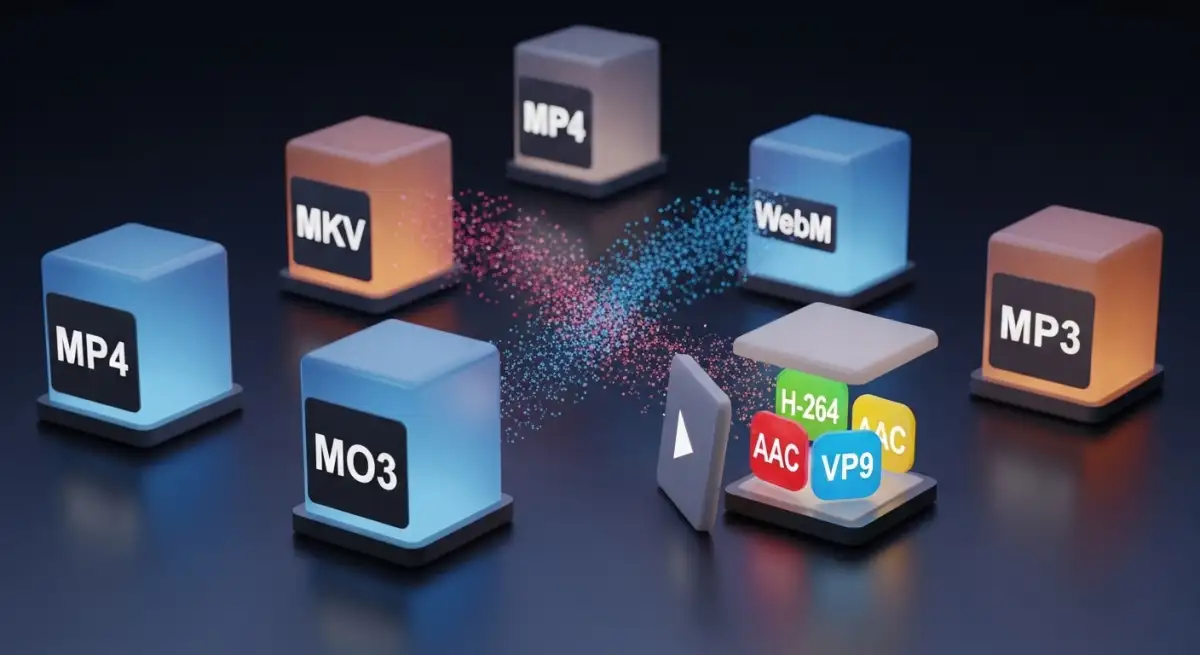
A container is the file format — the “box” that holds your media data. MP4, MKV, WebM, MOV, and AVI are all containers. Think of them as different types of shipping boxes. They define how the data inside is organized, what metadata can be included, and what types of content streams (video, audio, subtitles) can coexist in the file.
A codec is the compression algorithm that encodes the actual video or audio data inside that box. H.264 (AVC), H.265 (HEVC), VP9, and AV1 are video codecs. AAC, MP3, Opus, and FLAC are audio codecs. The codec determines the visual quality, file size, and computational cost of playback.
Why does this matter? Because “converting MKV to MP4” can mean two very different things depending on what codecs are inside the MKV file. This distinction is the key to understanding when conversion is instant and lossless versus slow and lossy.
Remuxing vs. Re-encoding
Remuxing means taking the existing video and audio streams out of one container and placing them into another, without touching the compressed data at all. It is like moving items from one box to another. The process is nearly instant and causes zero quality loss because the actual video and audio data are not modified.
Re-encoding (also called transcoding) means decoding the video/audio back to raw data and then compressing it again with a different codec. This is computationally expensive, takes much longer, and introduces some quality loss because you are going through another round of lossy compression.
Here is when each applies:
Remuxing works when the codecs inside your source file are compatible with the target container. Example: an MKV file containing H.264 video and AAC audio can be remuxed to MP4 instantly, because MP4 natively supports both H.264 and AAC. The data stays identical — only the container wrapper changes.
Re-encoding is required when the target container does not support the source codecs. Example: an MKV file containing VP9 video and Opus audio cannot simply be remuxed to MP4, because MP4 does not officially support VP9 or Opus. The video needs to be re-encoded to H.264 or H.265, and the audio to AAC, before it can fit inside an MP4 container.
DownKingo detects this automatically. When remuxing is possible, it does it. When re-encoding is necessary, it tells you and handles the conversion using FFmpeg under the hood.
Common Container Formats and When to Use Them
MP4
The universal format. Every phone, tablet, smart TV, game console, web browser, and media player supports MP4. It pairs most commonly with H.264 video and AAC audio, though it also supports H.265 and newer codecs. If you need a file to play everywhere without issues, MP4 with H.264 is the answer.
Use for: Sharing, mobile playback, uploading to social media, general-purpose storage.
MKV (Matroska)
MKV is the most flexible container available. It can hold virtually any codec combination, multiple audio tracks (useful for multilingual content), multiple subtitle streams, chapter markers, and rich metadata — all in one file. It is the preferred format for video archiving and media libraries managed with tools like Plex or Jellyfin.
The trade-off is device support. While desktop media players (VLC, mpv) handle MKV perfectly, some smart TVs, game consoles, and mobile apps have inconsistent or no MKV support.
Use for: Archiving, media server libraries, files with multiple audio/subtitle tracks.
WebM
WebM is an open format developed by Google, primarily for web use. It uses VP9 or AV1 for video and Opus for audio. YouTube stores much of its content in WebM internally. Files tend to be smaller than H.264 MP4 at equivalent visual quality, especially with AV1.
The downside is compatibility. Older devices and some native video players do not support WebM. It is best suited for web embedding and situations where file size is a priority.
Use for: Web embedding, bandwidth-conscious storage, YouTube-native format preservation.
MOV
Apple’s container format. Functionally similar to MP4 (both are based on the ISO base media file format) but with some Apple-specific extensions. If your workflow involves Final Cut Pro or other Apple software, MOV is the native choice. Outside the Apple ecosystem, MP4 is almost always a better pick.
Use for: Apple ecosystem workflows, Final Cut Pro projects.
AVI
A legacy format from the early 1990s. AVI lacks support for modern codecs, variable frame rates, and embedded subtitles. There is rarely a good reason to convert to AVI in 2026 unless you are feeding files to very old software or hardware that requires it.
Use for: Compatibility with legacy systems only.
Audio Extraction and Formats
Extracting audio from video files is one of the most common conversion tasks. Whether you are pulling a podcast episode from an MP4, saving music from a downloaded video, or isolating a voiceover, the process in DownKingo is straightforward: open the converter, select your video file, choose an audio output format, and convert.
Bitrate Matters
Audio bitrate determines the quality-to-size ratio of the output.
- 128 kbps: Acceptable for spoken word content like podcasts and audiobooks. Noticeable compression artifacts in music, particularly in high frequencies and transients.
- 192 kbps: Good for general listening. Most people cannot distinguish this from higher bitrates in casual environments.
- 320 kbps: The maximum for MP3 and the practical ceiling for lossy audio quality. Use this when you want the best MP3 can offer.
- FLAC (lossless): Preserves every detail of the original audio. File sizes are 2-5x larger than 320 kbps MP3. Only worth it if the source audio is itself lossless — extracting FLAC from a YouTube video that was encoded as AAC at 256 kbps gives you a larger file with no quality improvement.
Format Choices
MP3: Universal compatibility. Every device and app supports it. Quality tops out at 320 kbps. Best for general-purpose audio files.
AAC (M4A): Better compression efficiency than MP3 at the same bitrate. Widely supported on modern devices. The native audio format for YouTube and most streaming platforms.
FLAC: Lossless compression. No quality loss at all, but only meaningful when the source is also lossless. Ideal for archiving music from CDs or lossless sources.
WAV: Uncompressed audio. Massive file sizes but zero processing. Used in professional audio production where any compression is unacceptable.
OGG (Vorbis/Opus): Open-source lossy format. Opus in particular offers excellent quality at low bitrates. Less universally supported than MP3 or AAC but great for specific workflows.
How DownKingo Handles Conversion
DownKingo’s converter uses FFmpeg under the hood, but you never need to see a command line. FFmpeg is downloaded automatically the first time you open the app, along with yt-dlp, during the initial setup screen. After that, everything is ready to go.
The workflow in the app is visual: select your input file (or multiple files for batch conversion), choose the output format, adjust quality if you want to (or leave it at the sensible default), and start the conversion.
Quality Presets
FFmpeg uses encoding presets that control the trade-off between conversion speed and output file size. These map roughly to:
- Ultrafast: Converts quickly but produces larger files. The encoder spends less time optimizing compression.
- Medium: The default balance. Good file sizes with reasonable conversion time. This is the sweet spot for most users.
- Slow / Veryslow: Smallest possible file size at the same quality, but conversion takes significantly longer. The encoder does exhaustive optimization passes. Worth it for large archives where you convert once and store forever.
For most users, the medium preset is the right choice. The quality difference between medium and veryslow is marginal at the same bitrate — the main gain is a smaller file size, typically 5-15% reduction.
Batch Conversion
If you have a folder of files that all need the same treatment — say, converting a collection of MKV files to MP4 for your phone — DownKingo handles batch conversion. Select multiple files, apply the same output settings, and let the queue process them. The app takes advantage of your hardware to handle the work efficiently.
Practical Guidance
A few rules of thumb for common situations:
Downloaded a video and need it on your phone? Convert to MP4 with H.264. It will play on anything.
Archiving a video collection? Keep files in MKV. It preserves all streams and metadata without forcing you to choose one audio track or subtitle language.
Extracting music from video? MP3 at 320 kbps for universal compatibility, or keep the original AAC stream if you do not need MP3 specifically.
Avoid converting between lossy formats multiple times. Each re-encode introduces quality loss. Always convert from the highest quality source you have, and keep that source file.
Related guides: How to Download YouTube Videos in 4K covers format selection during download, and our comparison of open-source video downloaders reviews tools with built-in conversion support.
Get Started
DownKingo downloads FFmpeg automatically on first launch — no manual installation needed. Just download the app, open it, and follow the initial setup. The converter is available alongside the downloader in the same application.
To access advanced settings, use the bottom bar or the Ctrl + , shortcut. There you will find options for theme, menu, privacy, video, images, and shortcuts.
Source code available at github.com/down-kingo/downkingo — free, open source, no ads, no tracking.