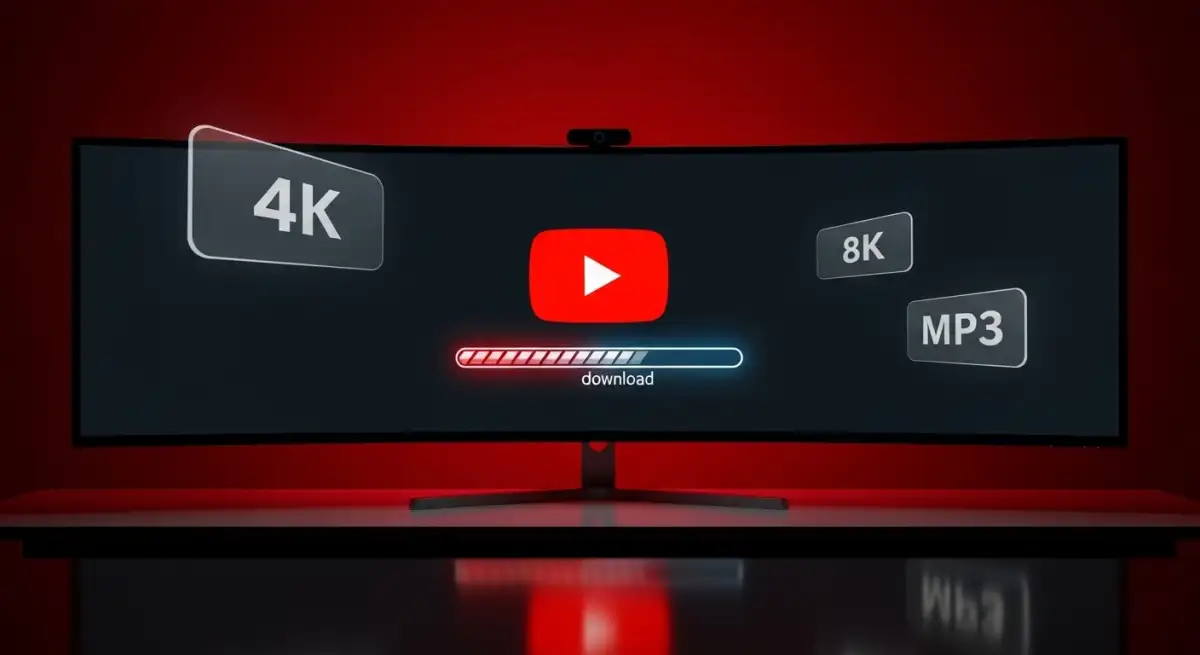
YouTube does not offer a native download option outside its mobile app, and even that is restricted to Premium subscribers with offline viewing limits. If you want to save YouTube videos permanently in 4K, 8K, or as MP3 audio — for studying, archiving lectures, keeping music offline, or watching without internet — you need a dedicated tool. DownKingo is a free, open-source desktop application that downloads YouTube videos with full control over resolution, format, and audio quality.
This guide explains how YouTube video delivery actually works, why desktop tools produce better results than online converters, and how to get the most out of DownKingo’s feature set.
Why Desktop Tools Beat Online Converters
Online YouTube download sites route your request through their own servers. That introduces several problems: your video URLs and IP address are exposed to a third party, the output is often capped at 720p, file size limits kick in for longer videos, and the sites are plastered with ads and deceptive download buttons. Many of them break within weeks as YouTube updates its infrastructure.
DownKingo runs entirely on your machine. It connects directly to YouTube, downloads at your full connection speed, and processes everything locally. There are no file size restrictions, no ads, no accounts, and zero telemetry. The entire codebase is auditable on GitHub.
How YouTube Video Quality Actually Works
Most people assume that when you watch a “1080p” video on YouTube, you are receiving a single file with video and audio combined. That is not how YouTube works internally. YouTube stores video and audio as separate adaptive streams — a practice called DASH (Dynamic Adaptive Streaming over HTTP). The video stream might be encoded in H.264, VP9, or AV1 at various resolutions, while the audio stream is typically AAC or Opus at different bitrates.
When you select “1080p” in DownKingo, the app downloads the best available video stream at that resolution and the best available audio stream, then merges them into a single file using FFmpeg. This is the same process that produces the highest-quality output. Screen recorders, by contrast, capture whatever your browser is rendering, often at lower quality with compression artifacts. Many online tools only grab the pre-muxed 720p stream because it is easier to serve.
This separation of streams is also why you sometimes see “video only” or “audio only” labels in download tools. DownKingo handles the merge automatically.
Choosing the Right Format
DownKingo lets you save YouTube videos in several container formats. Each has trade-offs.
MP4 (H.264 + AAC)
The universal choice. MP4 files with H.264 video and AAC audio play on virtually every device — phones, tablets, smart TVs, game consoles, and all major media players. If you are unsure which format to pick, MP4 is the safe default.
MKV (Matroska)
MKV is a more flexible container that can hold multiple audio tracks, subtitle streams, and chapter markers in one file. It is ideal for archiving because you do not lose any metadata. The downside is that some devices, particularly older smart TVs and consoles, may not support it natively.
WebM (VP9/AV1 + Opus)
WebM is YouTube’s native format. Videos encoded in VP9 or AV1 inside a WebM container tend to be smaller at the same visual quality compared to H.264. If you plan to re-upload or embed the video on a website, WebM keeps the file lean. However, hardware decoding support for AV1 is still limited on older devices.
Extracting Audio: YouTube to MP3 or FLAC
A huge portion of YouTube content is music, podcasts, and lectures where you only need the audio. DownKingo can extract the audio track and save it as MP3, AAC, FLAC, WAV, OGG, or M4A.
One important detail: YouTube audio is typically AAC encoded at 128 to 256 kbps. Converting that to FLAC does not magically add quality — you are just wrapping a lossy source in a lossless container, which increases file size without any audible benefit. For practical purposes, MP3 at 320 kbps or the original AAC stream is the quality ceiling for YouTube audio. Save FLAC for sources that are genuinely lossless.
Clipboard Monitor
One of DownKingo’s most convenient features is the clipboard monitor. When enabled, it watches your system clipboard in the background with a smart adaptive backoff system. Copy a YouTube URL from your browser, and DownKingo automatically detects it and prompts you to start the download. No need to switch windows and manually paste. This is especially useful when you are browsing through multiple videos and want to queue several in quick succession.
Concurrent Download Queue
DownKingo features an intelligent download queue with a configurable worker pool. You can set how many simultaneous downloads you want to run, and the app manages the queue automatically. The queue shows progress for each item individually, and you can pause, resume, or cancel specific entries without affecting the rest.
Quality Tiers Available
YouTube videos range widely in available quality depending on what the uploader provided. DownKingo supports resolutions from 360p all the way up to 4K (2160p) and 8K (4320p) at up to 60 frames per second. A quick reference for file sizes: a 10-minute video at 1080p is roughly 200-400 MB, at 4K around 800 MB to 1.5 GB, and at 8K potentially several gigabytes. Plan your storage accordingly when downloading multiple videos.
A Note on Copyright
Downloading YouTube videos is a capability, not a blanket permission. Respect copyright. Download content you have created yourself, content explicitly licensed for reuse (Creative Commons), or content you have purchased or have the rights to keep. Many creators share educational and open-licensed material that is perfectly fine to save. Use good judgment.
Want to learn more about video formats? Read our complete guide to video format conversion. If you also need to download from TikTok, see how to download TikTok videos without watermark.
Getting Started: Step-by-Step Installation
Installing DownKingo is straightforward and requires no technical knowledge. Here is how it works:
1. Download the Installer
Head to the download page and grab the installer for your operating system (Windows, macOS, or Linux).
2. Install the App
Run the installer normally. On Windows, SmartScreen may show a warning saying the application is not recognized — this happens because the installer does not yet have a digital signature. The app is safe and fully open source. Just click “More info” and then “Run anyway”.
3. Initial Setup (First Launch)
The first time you open DownKingo, the app displays a setup screen that automatically downloads yt-dlp (the download engine) and FFmpeg (the media processor). This process happens only once and takes a few seconds depending on your connection.
4. Initial Configuration
After setup, you go through the initial configuration screen where you can choose your theme (light or dark), preferred language (from 5 options), accent color, and other basic preferences.
5. Ready to Use
All set! To download a YouTube video, go to the Videos tab, paste the link, and choose your desired quality. The download starts immediately.
The project is fully open source with no ads, no tracking, and no premium tier. If you want to inspect the code or contribute, visit the repository at github.com/down-kingo/downkingo.