Manually transcribing audio and video is one of the most tedious tasks in content creation, research, and documentation. Whether you need to generate subtitles, document meetings, create searchable lecture notes, or index media content, typing every spoken word takes hours of effort. Online transcription services like Otter.ai or Google Speech-to-Text exist, but they require uploading your files to third-party servers — raising serious privacy concerns for confidential or sensitive content.
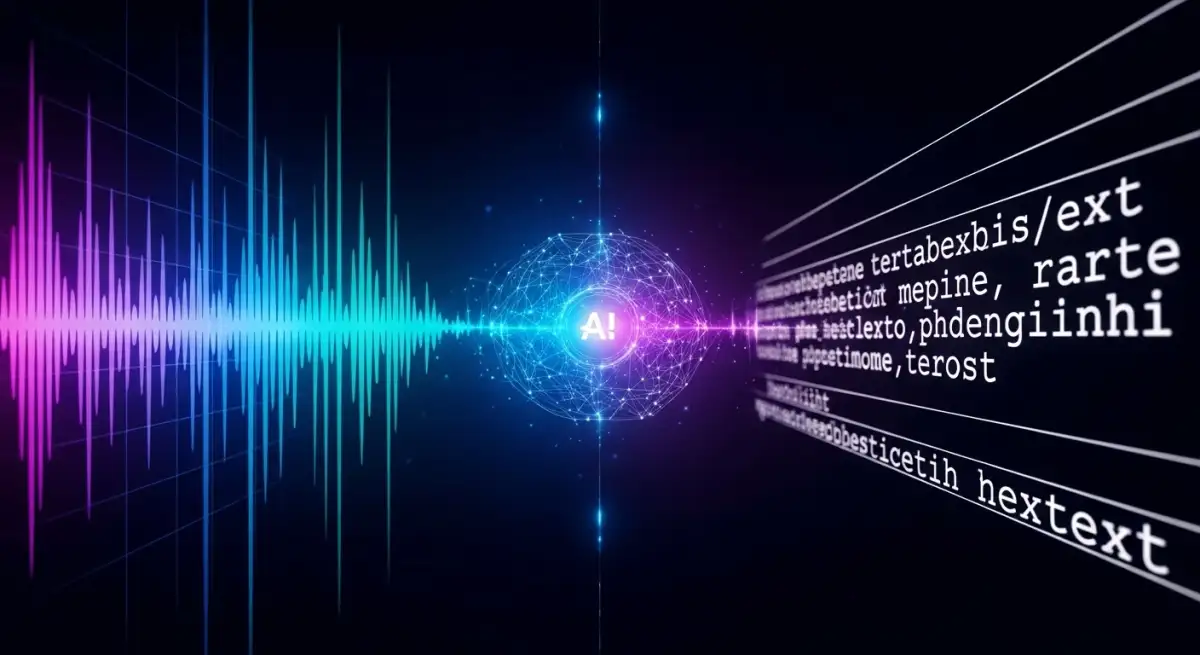
DownKingo solves this with a built-in transcriber that uses Whisper, OpenAI’s AI model, running locally on your computer. No data leaves your machine.
What is Whisper
Whisper is a speech recognition model developed by OpenAI. It was trained on over 680,000 hours of multilingual audio and is capable of:
- Transcribing audio to text with high accuracy
- Automatically recognizing multiple languages
- Generating timestamps for each segment
- Handling different accents and recording environments
The major advantage is that it runs completely offline after the model download. This means total privacy and zero internet dependency after the initial setup.
How It Works in DownKingo
The transcription process in DownKingo is visual and straightforward:
1. Open the Transcriber Tab
In DownKingo’s main navigation, select the Transcriber tab.
2. Select Your File
Choose an audio or video file from your computer. DownKingo accepts the most common formats: MP3, MP4, WAV, MKV, FLAC, M4A, OGG, WebM, and others — essentially anything FFmpeg can decode.
3. Choose the Language
Select the content language or leave it on automatic mode for Whisper to detect on its own. The model supports dozens of languages, including English, Portuguese, Spanish, French, German, Japanese, Korean, and many more.
4. Start Transcription
Click transcribe and wait. The time depends on the file size and the selected model. Processing is done locally using your computer’s resources.
Model Download
The first time you use the transcriber, DownKingo offers to download the Whisper model. Models vary in size and accuracy:
- Tiny (~75 MB): Fast, suitable for quick transcriptions where maximum accuracy is not critical.
- Base (~150 MB): Good balance between speed and accuracy for most uses.
- Small (~500 MB): Noticeably better accuracy, especially across multiple languages.
- Medium (~1.5 GB): High accuracy. Recommended if you have enough RAM.
- Large (~3 GB): Maximum accuracy, but requires more powerful hardware.
After download, the model is stored locally and does not need to be downloaded again. All subsequent transcriptions work completely offline.
Practical Use Cases
Students
Record your lectures and transcribe them later. Whisper generates text with timestamps, making it easy to locate specific sections. Combine with YouTube video downloads to have both the video and the transcription offline.
Content Creators
Generate subtitles for your videos automatically. The transcription can be exported and used as a base for subtitles in any video editor.
Professionals
Document meetings and calls without relying on cloud services. All transcription happens locally — ideal for sensitive or confidential content.
Researchers
Transcribe interviews and field recordings. Whisper’s multilingual capability is especially useful for research involving multiple languages.
Total Privacy
Unlike services such as Otter.ai, Google Cloud Speech-to-Text, or Amazon Transcribe, DownKingo’s transcriber does not send any data to external servers. The Whisper model runs entirely on your hardware. This means:
- Zero data upload: Your files never leave your computer
- No subscription required: No account or paid plan
- Works without internet: After the model download, everything is offline
- No usage limits: Transcribe as many files as you want
Hardware Requirements
Whisper uses CPU for processing (CUDA GPU significantly accelerates it if available). Minimum recommendations:
- CPU: Modern processor with 4+ cores
- RAM: 4 GB free for smaller models, 8 GB+ for large models
- Storage: Space for the chosen model (75 MB to 3 GB)
On modern hardware, a 10-minute audio file is transcribed in about 1-3 minutes with the base model. Larger models are more accurate but proportionally slower.
Combine transcription with DownKingo’s other tools: download YouTube videos and transcribe them locally, or convert video formats before processing.
Getting Started
1. Install DownKingo
Download the app and follow the normal installation process. On first launch, the automatic setup downloads the basic dependencies (yt-dlp and FFmpeg).
2. Open the Transcriber
Navigate to the Transcriber tab in the app.
3. Download the Model
On first use, the app offers to download the Whisper model. Choose the size that fits your hardware.
4. Transcribe
Select your file, choose the language, and start. It is that simple.
To access transcriber settings and other options, use the bottom bar or the Ctrl + , shortcut.
DownKingo is free, open source, and tracking-free. Source code available at github.com/down-kingo/downkingo.